A FOCUSED VPN FOR ANDROID
A considered
connection.
Ready when you are.
One clear control. Status you can follow. Ferz makes it easy to start your VPN connection and stop when you’re done.
Made for Android · Advertising-supported
THE FERZ EXPERIENCE
From first open
to connected.
Take a closer look at the app, from its quiet welcome to the moment internet access is verified. Select any image to view it full size.
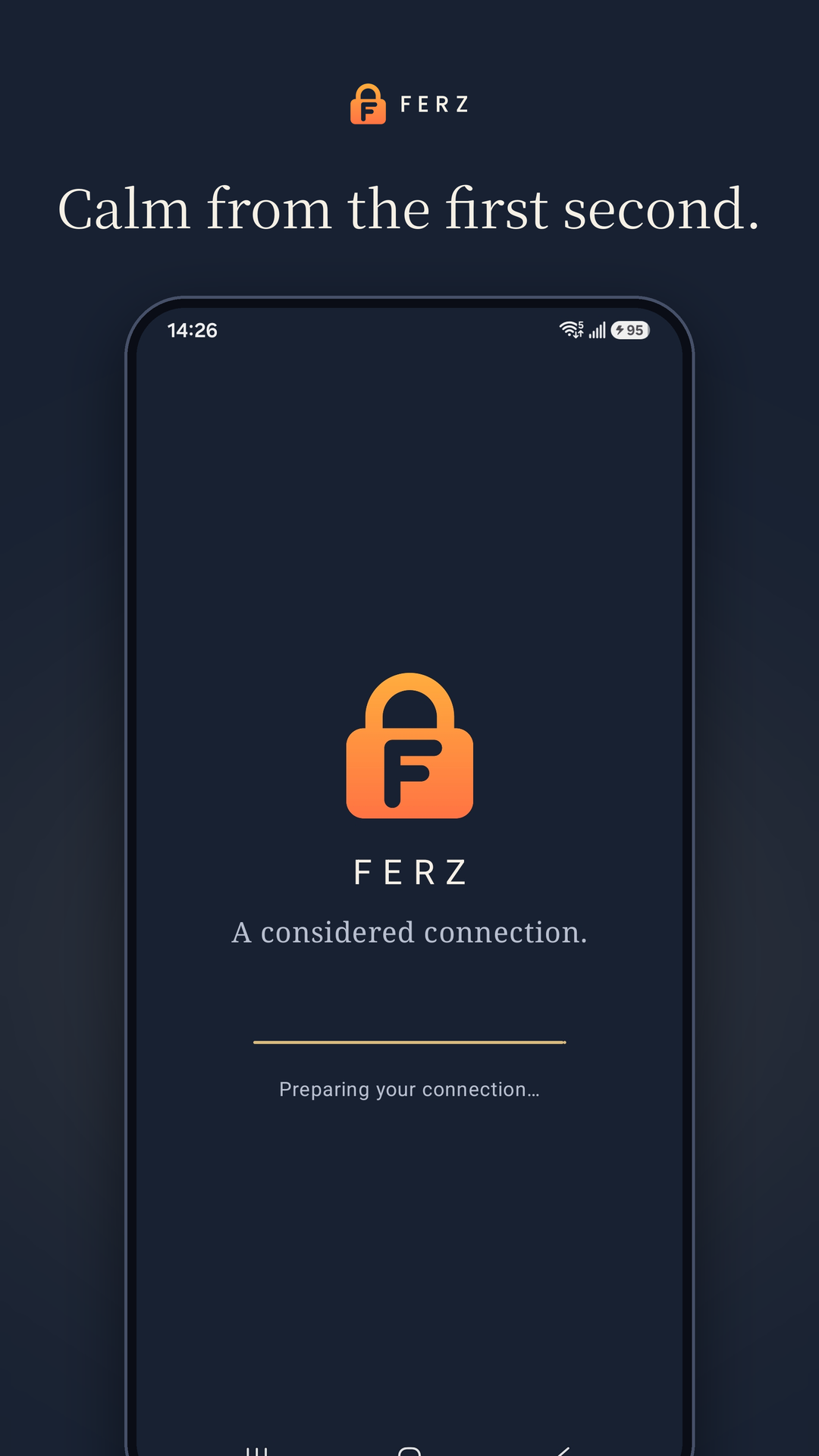
A calm start
Your connection is prepared when you open Ferz.
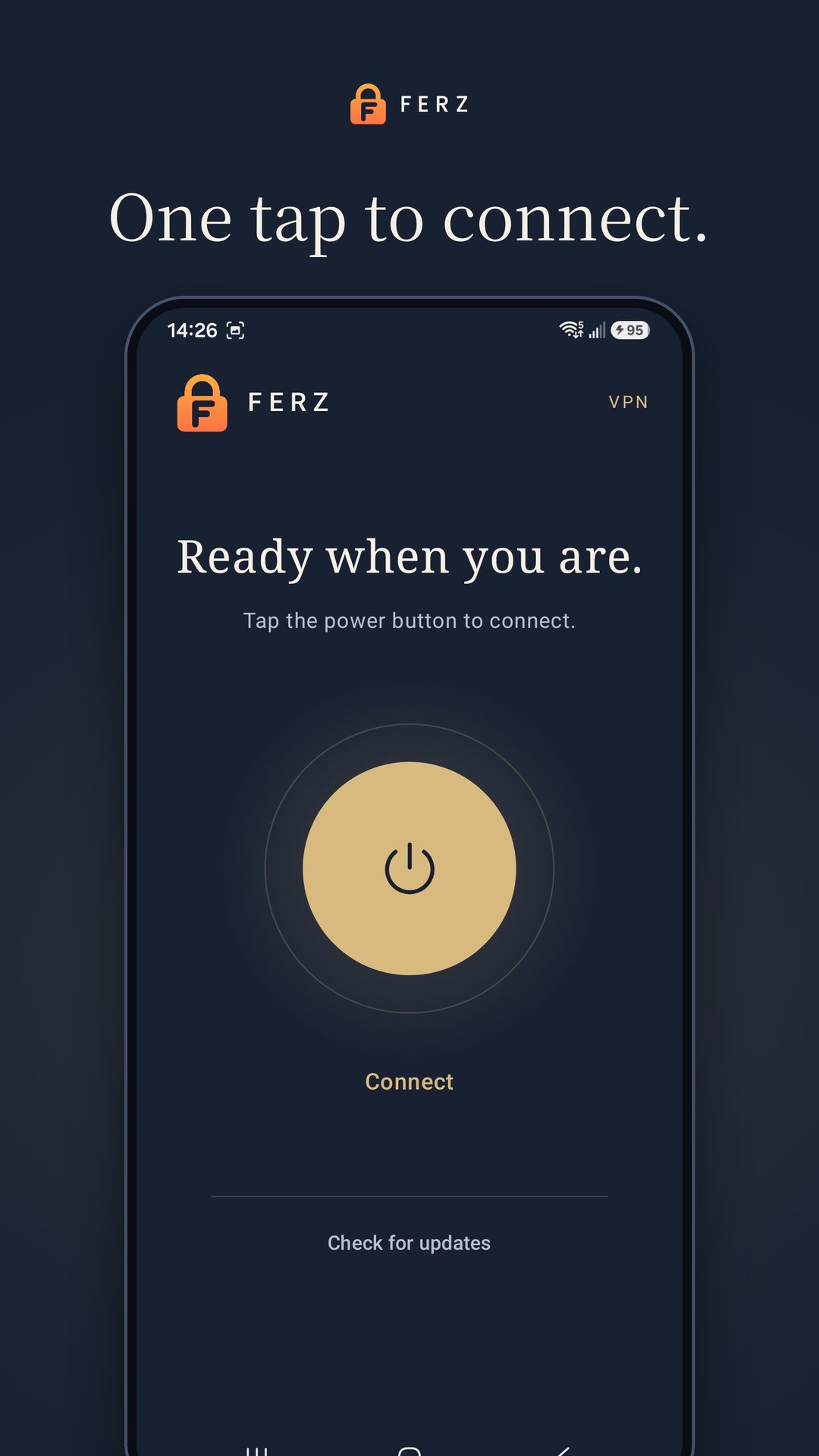
One clear control
Tap the circular power button to connect.
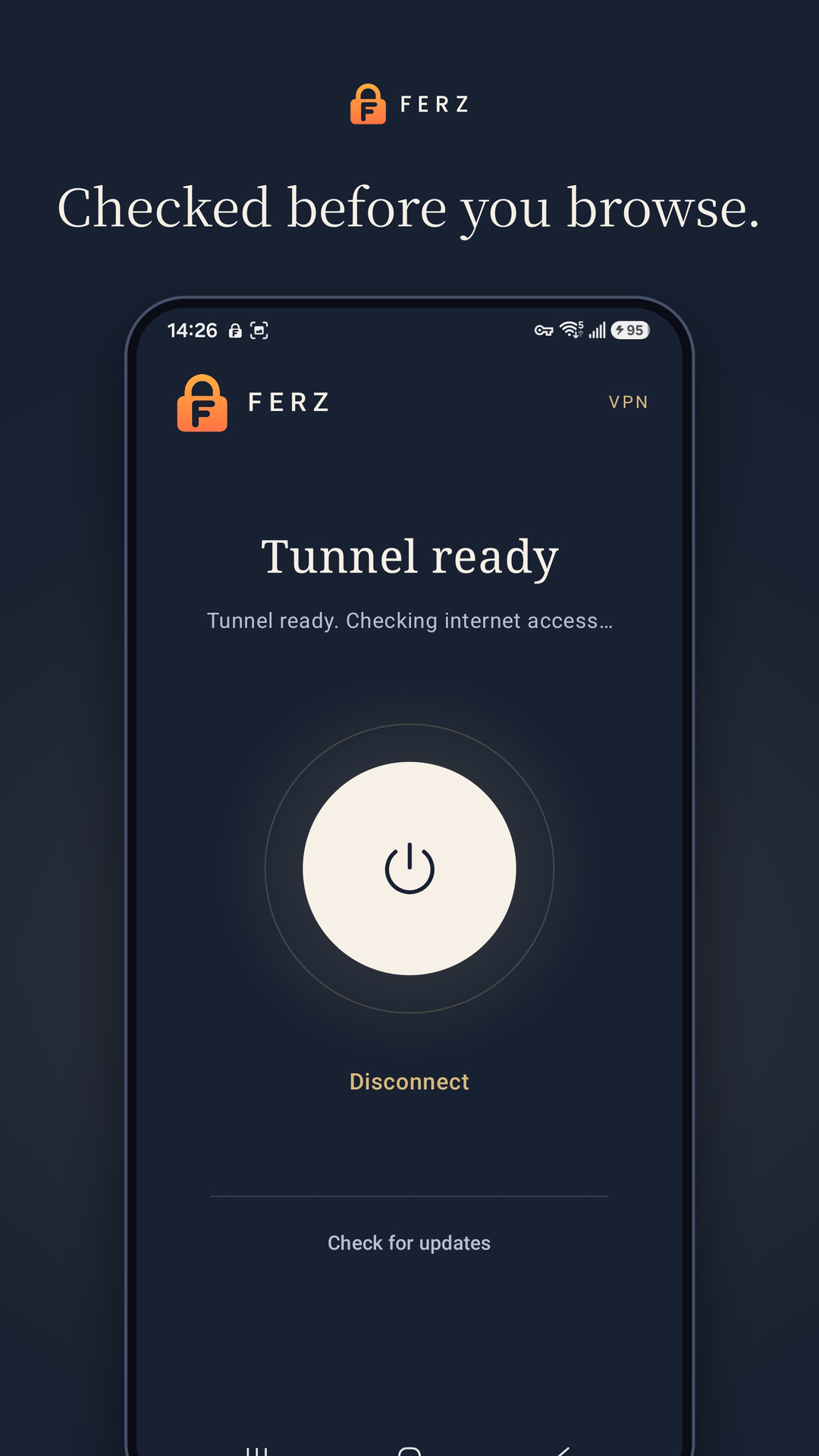
A visible check
Follow the status as Ferz checks internet access.
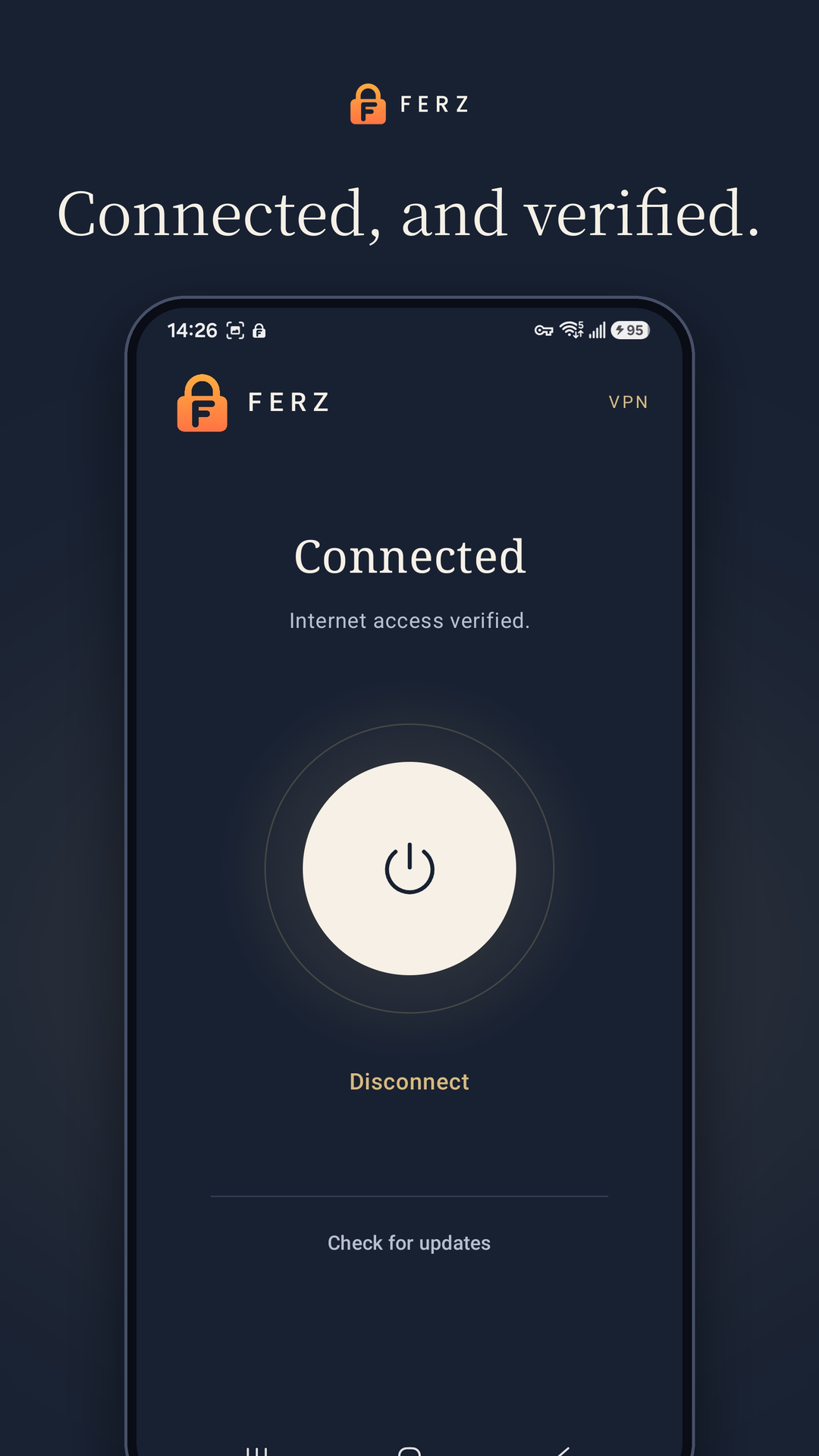
Connected, and verified
See the result, with Disconnect always within reach.
Swipe to explore on mobile. Screens show app states; connection times and availability depend on your network.
GETTING STARTED
A few simple steps.
Ferz prepares its connection settings for you. You decide when the VPN starts and stops.
- 01
Open Ferz.
Install the Android app from Google Play. Let the welcome screen prepare your connection.
- 02
Tap Connect.
Use the power button and approve Android’s VPN permission request when it appears.
- 03
Follow the status.
Look for “Connected” and “Internet access verified.” Tap the button again to disconnect.
YOUR INFORMATION
Privacy, in plain words.
Read how FerzVPN handles VPN connections, service information, advertising, and support requests.
Read the Privacy PolicyWhat does “Tunnel ready” mean?
The VPN tunnel has started and Ferz is checking internet access through it. The app displays “Connected” after that check succeeds.
Why does Android ask for VPN permission?
Android requires your approval before Ferz can create a VPN connection and route traffic through it. You can disconnect from the app or manage the permission in Android settings.
Does Ferz include advertising?
Ferz includes Google advertising and consent technology. Our Privacy Policy explains the information involved and links to Google’s policies.
What if I cannot connect?
Check your internet connection, keep Ferz updated, and try again. If the problem continues, email support@pushstudiocore.com with the status message shown in the app.
FERZVPN FOR ANDROID